How To Optimize Gaming PC for 120 Hz
Achieving smooth, responsive gameplay at high refresh rates isn’t just about buying a fast monitor. To consistently hit high frame rates, your entire system, from airflow to graphics settings, needs to work together. At Xidax, we focus on real-world performance, long-term reliability, and smart component choices that actually improve your gaming experience.
This guide breaks down exactly how to optimize gaming PC for 120hz performance with practical, step-by-step advice you can apply today.
Why 120 Hz Gaming Feels Better
A 120 Hz display refreshes the screen 120 times per second, allowing motion to appear smoother and input to feel more immediate. When your PC can consistently deliver 120 fps, the difference is noticeable:
- Reduced motion blur
- Lower input latency
- Smoother camera movement
- More consistent performance in fast-paced games
However, hitting that target requires balanced hardware, proper cooling, and optimized software settings.
How To Optimize Gaming PC for 120 Hz
CPU and GPU Balance Matters
Your processor and graphics card need to complement each other. A powerful GPU paired with an underpowered CPU can create bottlenecks that limit frame rates, even at lower resolutions.
- Mid-to-high tier CPUs handle physics, AI, and background processes
- Modern GPUs handle rendering, textures, and visual effects
If your system struggles to maintain stable frame rates, it may be time for targeted gaming PC upgrades rather than a full rebuild.
Best GPU Options for 120 Hz Gaming
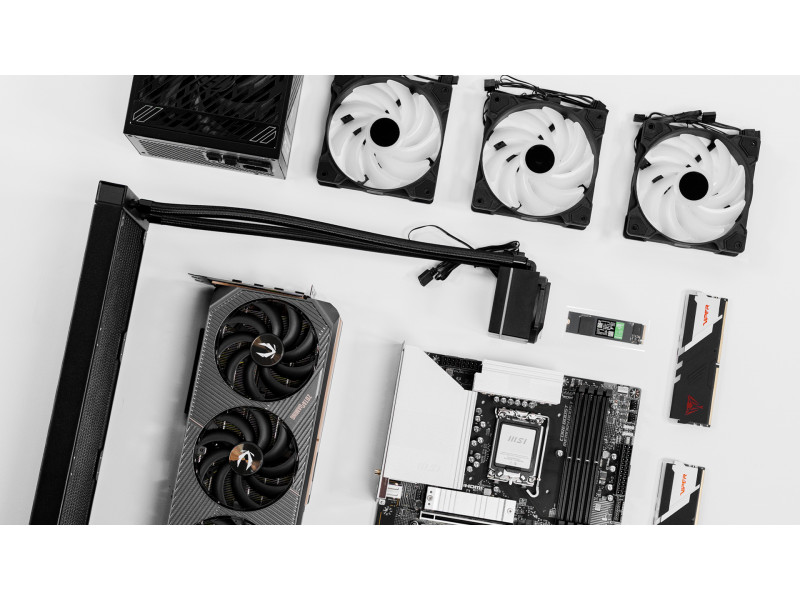
At 1080p and 1440p, the GPU is the single biggest factor in reaching high refresh rates. If you’re still running older hardware, one of the best upgrades for gaming pc performance is to upgrade the PC graphics card to a modern model with sufficient VRAM and strong raster performance.
Key things to look for:
- At least 8–12 GB of VRAM
- Strong driver support
- Features like DLSS or FSR for higher frame rates
A GPU upgrade alone can often push a system from unstable performance to smooth, consistent 120 fps gameplay.
Cooling and Airflow: The Hidden Performance Boost
Why Thermal Throttling Kills FPS
When CPUs or GPUs overheat, they automatically reduce clock speeds to protect themselves. This thermal throttling causes sudden frame drops and stuttering which is especially noticeable during long gaming sessions.
Proper airflow is a critical but often overlooked PC upgrade.
Optimize Case Airflow
- Use at least two intake fans and one exhaust fan
- Favor mesh-front cases for better airflow
- Keep cables organized to avoid blocking air paths
- Clean dust filters regularly
Improving airflow helps components maintain boost clocks longer, resulting in smoother gameplay and more consistent 120 fps output.
Memory and Storage Optimization
RAM Configuration
For modern gaming:
- 16 GB RAM is the baseline
- 32 GB is ideal for multitasking and future-proofing
Make sure XMP or EXPO profiles are enabled in BIOS so your RAM runs at rated speeds. Slow memory can quietly limit performance, especially in CPU-heavy games.
SSDs Reduce Stutter and Load Times
While storage doesn’t directly increase FPS, installing games on a fast NVMe SSD reduces asset streaming stutter and keeps gameplay smooth. This is one of the most cost-effective gaming PC upgrades you can make.
Software and System Settings That Matter
Windows Optimization
- Set Power Plan to High Performance
- Enable Game Mode
- Disable unnecessary startup programs
- Close background apps while gaming
These small adjustments free up CPU resources and improve frame consistency.
GPU Driver and Control Panel Tweaks
Keep your GPU drivers up to date and adjust control panel settings for performance:
- Prefer maximum performance power mode
- Disable unnecessary visual enhancements
- Use G-SYNC or FreeSync if supported
- Avoid traditional V-Sync if aiming for low latency
These tweaks help stabilize frame delivery, especially when targeting 120 fps.
In-Game Graphics Settings for High Refresh Rates
Prioritize Performance-Heavy Settings
Some graphics options use a lot of GPU power while making only minor visual differences during gameplay. Lowering these settings is an easy way to improve frame rates:
- Shadows: High or ultra shadows are demanding. Medium settings often look similar while boosting FPS.
- Volumetric effects: Fog, smoke, and lighting effects are visually impressive but very GPU-intensive. Reducing them can greatly improve performance.
- Anti-aliasing: Advanced AA methods can be costly. Lighter options or upscaling can deliver better performance with minimal quality loss.
- Motion blur: Disabling it improves clarity and slightly increases responsiveness.
These changes are especially effective for maintaining smooth performance in fast-paced games.
Use Upscaling Technologies
DLSS and FSR allow you to render games at lower internal resolutions while maintaining sharp visuals. This is especially useful if your GPU is close to, but not quite at, stable 120 fps.
When to Upgrade vs Optimize
Not every system needs a full overhaul. The best upgrades for gaming PC performance often focus on one or two key components.
Upgrade if you notice:
- GPU usage consistently maxed out
- CPU hitting thermal limits
- VRAM usage exceeding capacity
- Inconsistent frame pacing
Sometimes a single PC upgrade, like improved cooling or a stronger GPU, delivers dramatic gains.
Future-Proofing for Consistent 120 Hz Gaming
To maintain high refresh performance over time:
- Choose a quality PSU with headroom
- Use a modern motherboard with upgrade paths
- Maintain cooling systems regularly
- Update BIOS and drivers periodically
Future-proofing isn’t about buying the most expensive parts, it’s about choosing components that allow easy gaming pc upgrades later.
Final Thoughts on Optimizing for 120 Hz
Optimizing for high refresh gaming is about balance. The right combination of hardware, airflow, system settings, and smart upgrades allows your PC to deliver smooth, consistent performance without unnecessary spending. Whether you’re planning small gaming PC upgrades or a major rebuild, focusing on efficiency and stability will help you get the most out of your 120 Hz setup today and well into the future.
FAQs About Gaming PC Optimization
What hardware do I need for 120 Hz gaming?
You’ll need a capable GPU, a balanced CPU, at least 16 GB of RAM, and a monitor that supports 120 Hz. Cooling and airflow also play a major role.
Is 120 fps better than 60 fps?
Yes. At 120 fps, gameplay feels smoother, input lag is lower, and fast motion appears clearer especially in competitive titles.
Should I upgrade my CPU or GPU first?
In most cases, upgrading the GPU delivers the biggest performance boost. However, if your CPU is frequently maxed out, a balanced PC upgrade may be necessary.
Does cooling really affect FPS?
Absolutely. Poor cooling causes thermal throttling, which lowers clock speeds and reduces frame rates over time.
Can software tweaks alone get me to 120 fps?
Software optimization helps, but hardware limitations still apply. Tweaks work best when paired with smart upgrades for gaming PC performance.