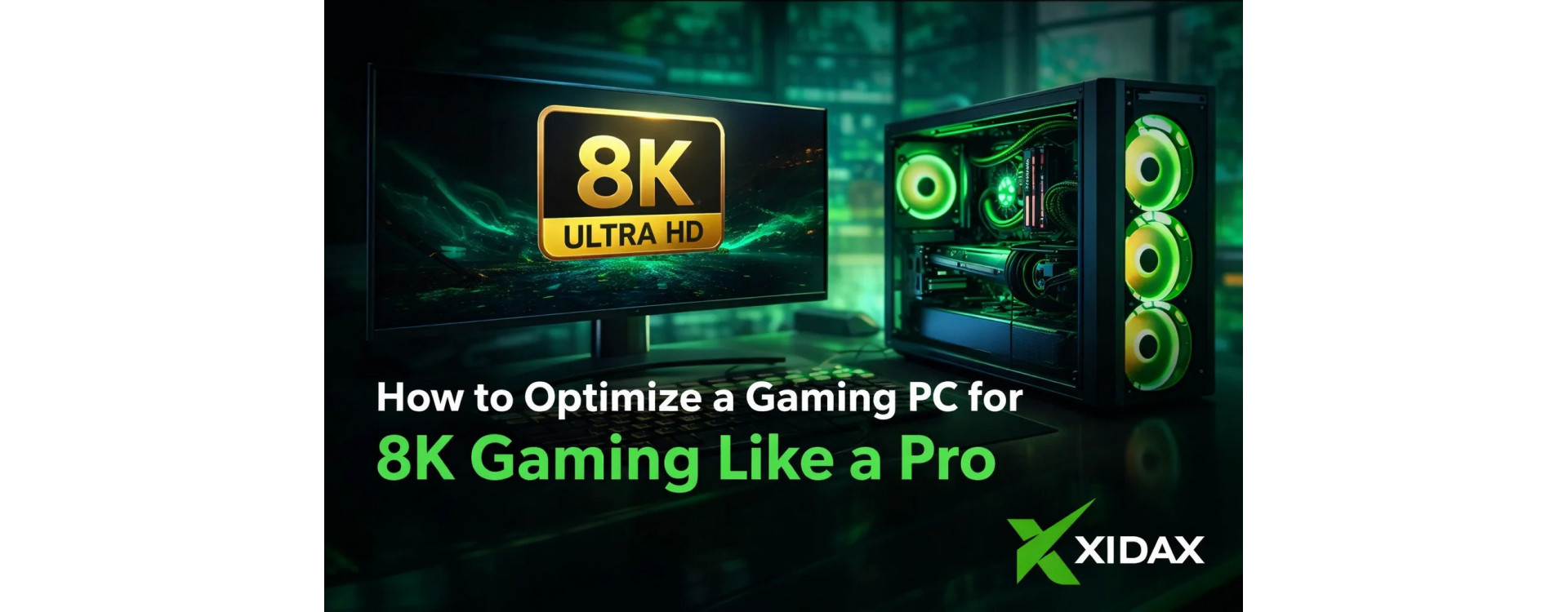
8K is the “wait, that’s a screenshot” tier. The kind of clarity where distant foliage stops looking like a green smear and starts looking like individual leaves. The catch is that 8K gaming is also where PCs get exposed. Not by one big thing, but by a chain of small weak links that stack up until your framerate tanks, your image looks weird, or your expensive setup quietly runs at the wrong bandwidth.
Learning how to optimize a gaming pc for 8k gaming starts with one truth: the GPU renders the frame, but the display chain, thermals, storage, and settings decide whether that frame makes it to your eyeballs smoothly.
If the end goal is an 8k gaming pc that feels stable instead of fragile, it helps to start from a build that’s already balanced. The fastest shortcut is browsing the Xidax homepage and then comparing tiers on Xidax gaming PCs so you’re optimizing a solid base, not trying to “tune” around a bottleneck.
8K Gaming Reality Check: What “8K” Actually Means
8K Ultra HD is 7680 × 4320 resolution. That’s not marketing fluff. That’s a massive pixel workload. You can see the definition and standards context on Wikipedia’s Ultra-high-definition television page, and CTA also frames 8K as 7680 × 4320 in its Ultra HD resources coverage. CTA’s press release is useful for that quick “what is 8K” breakdown from an industrial standpoint.
Here’s the gamer translation: gaming at 8k resolution usually isn’t “native 8K, ultra settings, 120 FPS.” It’s either:
-
Native 8K at playable settings and realistic framerates, often closer to 60 FPS targets
-
Upscaled output (render lower, upscale to 8K) for smoother play
The pro move is treating 8K as a system goal, not a single setting you toggle.
How to Optimize Gaming PC for 8K Gaming: Hardware Priorities That Matter First
If you want an 8k gaming computer that feels legit, builds matter more than brand loyalty. This is the order that actually affects whether you can game 8k without constant compromises.
1) GPU First: The Only Part That Can’t Be “Fixed Later”
8K is GPU territory. If the GPU can’t handle the workload, no amount of Windows tweaks will save it. For most people, the optimization path is choosing a GPU tier that can hold the experience you want, then leaning on smart settings for consistency.
If you’re shopping with a “no drama” mindset, start by looking at what complete systems cost and include, rather than piecing together a wish list. That’s why it’s worth scanning Xidax prebuilt gaming PCs as a reference point. Even if you don’t buy prebuilt, it gives you a balanced target to aim for.
2) CPU Second: Prevent the “High-End GPU, Weird Stutters” Trap
At 8K, the CPU matters less than the GPU, but it still matters. Big open-world games, heavy physics, or messy background tasks can create stutters that feel like “GPU issues” when they’re actually CPU scheduling issues.
3) RAM Third: Keep the System From Choking in the Background
32GB is the clean starting point for modern high-end gaming. If you multitask hard (streaming, capture, Chrome tabs, Discord, mods), 64GB is the “never think about it again” tier.
4) Storage Fourth: Stop Texture Streaming From Feeling Janky
This is where a lot of 8K setups quietly fail. The bigger the assets, the more you feel slow storage. If you’re constantly installing giant games, moving files, or keeping a big library, read the storage playbook on Xidax’s 4TB NVMe guide. A fast NVMe drive is one of the most underrated parts of smooth 8k gaming because it reduces hitching when games stream assets.
The Display Chain: The Part People Forget Until It’s Too Late
Your PC can render an 8K frame and still not deliver an 8K experience if the connection is wrong. The “display chain” is monitor/TV, ports, cable, and settings.
1) Check the Refresh Rate You’re Actually Running
A lot of 8K displays top out at 60Hz, and that’s fine. The pro move is making sure you’re actually at the best refresh the display supports, not accidentally stuck at a lower mode.
2) Match the Cable to the Job
If you’re using HDMI, use a certified Ultra High Speed HDMI cable rated for 8K bandwidth. If you’re using DisplayPort, make sure your GPU and display support the version you’re expecting.
3) Turn Off the Silent “Compatibility” Settings That Crush Quality
Some TVs and monitors default to compatibility modes that reduce chroma or colour depth. If your text looks fuzzy or colours look off, you’re likely not running the best mode.
If your 8K setup is also your “daily driver” for work, this part matters a lot. Nobody wants a beautiful game and blurry desktop text.
How to Optimize Gaming PC for 8K Gaming: Windows Setup That Actually Helps
This is the section where people usually overcomplicate things. The goal is stability.
1) Use a Clean Driver Install When You’re Chasing Weird Problems
If you’re getting random crashes, flickers, or performance swings, a clean GPU driver install can fix issues that “normal updating” won’t. It’s especially helpful after major GPU swaps.
2) Lock in Power Settings for Consistency
Use a high-performance power plan so your system doesn’t downclock at the worst possible moment. This is a classic “my rig is powerful but feels inconsistent” fix.
3) Turn Off What You Don’t Use
Unneeded overlays and background recorders can cause stutters. If you’re not using them, don’t let them run.
This is also where gaming configs become your best friend. Set your baseline once, then stop changing ten variables every time a game feels off.
Thermals: The Invisible Reason 8K Gaming Falls Apart Mid-Session
8K loads your GPU hard for long stretches. If your cooling isn’t dialed, performance can degrade over time. That’s the “it was fine for 15 minutes” story.
If you want the straight explanation of why performance drops when parts get hot, read what thermal throttling is. It’s the clearest way to understand why an 8k gaming pc can feel amazing in the first match and sluggish in the third.
1) Clean Airflow Beats “Fancy” Parts
A well-cooled mid-to-high setup often feels better than an overpowered setup that runs hot and throttles.
2) Watch for the Pattern
If your FPS is fine at launch and drops later, thermals are a prime suspect. If FPS is bad immediately, you’re dealing with a settings or hardware ceiling.
In-Game Settings: The Pro Method for Smooth 8K Gaming
The biggest mistake at 8K is trying to max everything and hoping it works out. The better approach is prioritizing what 8K is good at.
1) Keep Textures High, Cut the Stuff That Adds Blur
Textures are the “8K wow.” Motion blur, depth of field, heavy post-processing can make 8K look worse, not better. Cut those first.
2) Use Upscaling When Needed
Many modern games look excellent when you render below 8K and upscale. The goal is stable frame pacing, not a brag screenshot that stutters.
3) Create Per-Game Presets
One “global settings” approach is how you end up frustrated. Save per-game gaming configs so your competitive shooter doesn’t share the same settings logic as your cinematic open-world game.
If ray tracing is part of your 8K plan, it changes the math. Ray tracing can be the difference between smooth and unplayable. That’s why it’s worth reading the companion tuning guide on how to optimize gaming PC for ray tracing and applying those settings per title.
Quick Diagnosis Table: What’s Bottlenecking Your 8K Setup
|
What You See |
Most Likely Cause |
Fast Fix |
|
Low FPS immediately in every game |
GPU ceiling |
Lower heavy settings, use upscaling, or move up a GPU tier |
|
Smooth at first, worse later |
Thermals |
Improve airflow, check throttling behaviour |
|
Stutters when turning fast or entering new zones |
Storage/streaming |
Ensure fast NVMe, keep drive space healthy |
|
Image looks soft or “wrong” |
Display mode/cable |
Verify 8K mode, refresh, cable rating, chroma settings |
|
Random crashes under load |
Driver/power instability |
Clean driver install, stable power plan, check temps |
This is the “how to optimize computer for gaming” mindset: identify the bottleneck, fix the bottleneck, stop guessing.
Buying Paths: Desktop, Laptop, or a Smart Starter Build
Not everyone needs a full 8k gaming computer today. Some people want a strong stepping stone and a clear upgrade path.
1) Desktop for the Most Reliable 8K Gaming PC Experience
Desktops are the easiest way to sustain high GPU load without throttling. If you want a clean path to a true 8k gaming pc, stick with desktop.
2) Laptop Only If Portability Is Non-Negotiable
Gaming at 8k resolution on a laptop is hard on thermals and power limits. If portability matters more than ultimate performance, browse Xidax gaming laptops and be realistic about sustained 8K workloads.
3) Refurbished for Value While You Build Toward 8K
If you’re upgrading from an old system, getting onto a better baseline first is smart. A refurbished PC can get you into modern performance territory, then you upgrade toward 8K later without wasting money.
4) A Ready-To-Roll Example for People Who Want Simple
If you want a “start strong now, upgrade later” path, a ready-to-roll build like the Xidax Ready-To-Roll configuration gives you a modern platform for high-end gaming configs, fast storage planning, and future GPU upgrades.
Where to See Real Builds, Setups, and the People Behind Them
For quick build photos and desk setups, check Xidax on Instagram. For longer build videos and performance breakdowns, the Xidax YouTube channel is the better rabbit hole. More tuning posts live on the Xidax blog!
How to Optimize Gaming PC for 8K Gaming: The “Do This Tonight” Checklist
1) Verify 8K mode, refresh rate, and cable rating
Confirm your display is in the best 8K mode it supports and your cable is rated for the bandwidth.
2) Stabilize drivers and power settings
Update drivers cleanly if needed and lock a performance power plan so clocks stay consistent.
3) Set per-game presets
Create gaming configs per title so you’re not constantly reinventing your settings.
4) Control thermals before chasing more settings
If you’re throttling, fix airflow before you tweak graphics again.
5) Use upscaling and ray tracing settings strategically
Aim for smooth frame pacing. “Playable and consistent” beats “native and choppy.”
If you’re still dialing in where to start, optimize your gaming pc for 8k gaming one bottleneck at a time. That’s the difference between a rig that looks impressive and a rig that feels professional.
Frequently Asked Questions About How to Optimize Gaming PC for 8K Gaming
1) How to optimize a gaming pc for 8k gaming without constant stutter
Prioritize GPU headroom, fast NVMe storage, stable drivers, and good airflow so the system doesn’t throttle mid-session.
2) What’s the fastest way to make 8k gaming feel smoother
Use upscaling when needed, cut heavy post-processing first, and confirm your display chain is running true 8K bandwidth.
3) Can a gaming laptop handle gaming at 8k resolution
It can output 8K, but sustained 8K performance is limited by thermals and power. Desktops are the reliable option for long sessions.
4) Why does an 8k gaming pc feel worse after 20 minutes
Thermal throttling is the most common cause. If FPS drops over time, cooling and airflow are the first fixes.
5) Do you need special settings to game 8k on a TV
You need the correct port, cable rating, and TV input mode so you’re not stuck in a reduced bandwidth or compatibility mode.
Disclaimer: The information provided in this blog post is for informational purposes only. Please verify all details before making any decisions. Xidax product availability and specifications are subject to change. All trademarks are the property of their respective owners. This content is not intended as legal, financial, or medical advice.