MacBook Pro Thermal Throttling: The Truth for Gamers
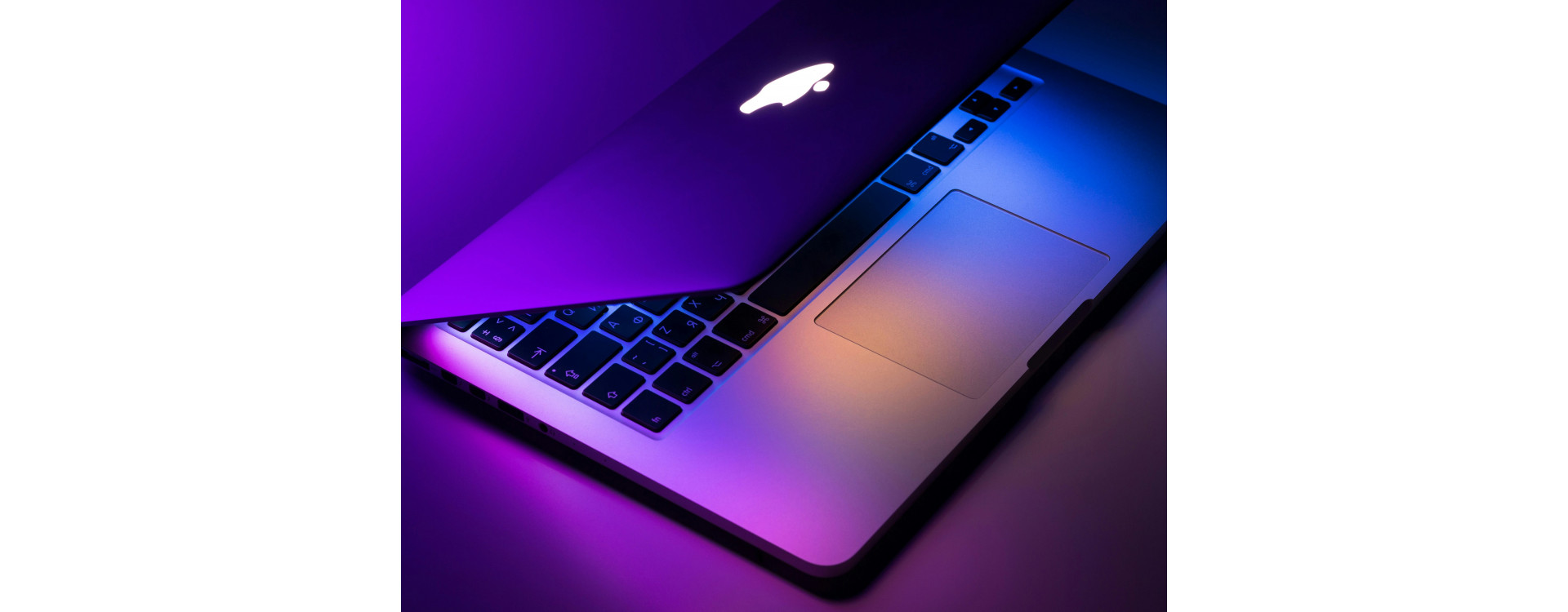
Apple’s MacBook Pro is often praised for its premium build quality, powerful processors, and sleek design. But for gamers and performance-focused users, there’s a persistent question that won’t go away: MacBook Pro thermal throttling. Can a thin, quiet, all-in-one laptop really sustain demanding workloads like gaming, emulation, or long rendering sessions without slowing down?
In this guide, we’re cutting through myths, fan noise, and marketing to give you the real, practical truth. We’ll explain what’s happening under the hood, why gamers notice it more than casual users, and what you can realistically do about it.
Why Gamers Care About MacBook Pro Thermal Throttling
Gaming stresses hardware differently than everyday productivity. Short bursts of CPU or GPU power aren’t the issue, sustained performance is. That’s where thermal throttling becomes visible.
When you’re gaming, you’re asking your system to:
- Maintain high clock speeds for long periods
- Push both CPU and GPU simultaneously
- Handle constant heat output without breaks
MacBook Pros are engineered to balance performance, noise, and battery efficiency. For gamers, that balance doesn’t always land where you want it.
What Is Thermal Throttling?
Before going deeper, let’s clarify one essential concept: what is thermal throttling?
Thermal throttling is a built-in safety mechanism. When a processor reaches predefined temperature or power limits, it automatically reduces clock speeds to prevent damage. This protects the hardware, but it also reduces performance.
On a desktop gaming PC, aggressive cooling often prevents throttling entirely. On laptops, especially thin ones, throttling is often part of the design philosophy.
Why MacBook Pros Throttle Differently Than Gaming PCs
Thin Design, Limited Heat Dissipation
MacBook Pros prioritize portability and a sleek form factor. A thin chassis means:
- Smaller heatsinks, which limit how much heat can be absorbed at once
- Tighter internal layouts, leaving less room for heat to spread and dissipate
- Limited airflow paths, restricting how quickly hot air can exit the system
- Less space for large, high-RPM fans, which are common in gaming laptops and desktops
That doesn’t mean the cooling system is “bad”, it’s engineered for quiet operation, efficiency, and short performance bursts, not sustained peak output over long gaming sessions.
Conservative Fan Curves
Apple uses very conservative fan behavior by design:
- Fans stay quiet for as long as possible to reduce noise
- Fan speeds increase slowly, even as temperatures rise
- Clock speeds may be reduced before fans ramp aggressively
By the time the fans fully react, the system may already be lowering performance. This design choice directly contributes to thermal throttling in a MacBook Pro during extended, high-load workloads like gaming.
Power and Sensor-Based Throttling
Not all throttling is triggered by extreme temperatures. In many cases, macOS reduces performance based on:
- Power delivery limits, especially under sustained load
- Internal sensor readings, not just the main CPU temperature
- External display load, which increases GPU and system power draw
- Charging method, such as using USB-C docks or hubs instead of direct power
This is why users sometimes experience noticeable performance drops at surprisingly low reported temperatures, it’s a proactive system decision focused on stability and efficiency rather than heat alone.
Intel vs Apple Silicon: Does It Change the Story?
Intel MacBook Pros (2016–2019)
Older Intel-based MacBook Pros are the most commonly reported cases of severe thermal throttling. These systems:
- Run hotter under load, especially with high-core-count Intel CPUs
- Share thermal capacity between the CPU and GPU, causing heat buildup when both are active
- Throttle aggressively during sustained tasks like gaming, compiling code, or video rendering
- Struggle to maintain consistent clock speeds once internal temperatures rise
- Are heavily affected by external monitors, which increase GPU workload, power draw, and internal heat
For gamers, this often results in strong initial performance followed by rapid FPS drops during longer sessions.
Apple Silicon (M1, M2, M2 Pro)
Apple Silicon dramatically improved performance-per-watt and overall efficiency—but throttling didn’t disappear entirely. Under sustained workloads:
- The chip can still hit thermal or power limits, especially during CPU- and GPU-heavy tasks
- Clock speeds drop to keep temperatures and power usage within safe ranges
- Fans may not ramp up aggressively, as macOS prioritizes quiet operation
- Performance remains excellent in short bursts, but can taper off over time
For gaming, this means Apple Silicon MacBooks feel fast at first, yet may deliver inconsistent performance during long, continuous gaming sessions compared to actively cooled gaming systems.
Why Gaming Triggers Throttling Faster Than Other Tasks
Gaming creates a perfect storm for laptops like the MacBook Pro:
- Continuous CPU usage, especially in simulation, physics, and background game logic
- Continuous GPU usage, as frames must be rendered nonstop with no meaningful breaks
- High memory bandwidth demand, which adds additional heat and power draw
- No natural “idle” moments, unlike many productivity tasks that pause or fluctuate
Unlike exporting a video, which often runs in stages or finishes in short bursts, gaming demands constant, sustained performance. That’s why the thermal throttling tends to feel more immediate and noticeable to gamers than to office or casual users, even on powerful hardware.
Common Signs Your MacBook Pro Is Throttling
If you’re gaming on a MacBook Pro, watch for these indicators:
- FPS gradually drops during longer sessions, even though the game settings haven’t changed
- Performance improves after quitting and relaunching a game, only to decline again after some time
- Fans suddenly ramp up after performance has already declined, instead of preventing the slowdown
- Games feel smooth for the first 5–15 minutes, then gradually lose responsiveness or frame consistency
- Input lag or micro-stutters appear as the system reduces clock speeds to manage heat and power
These symptoms are classic laptop throttling behavior, not necessarily a defect or malfunction, but a design limitation tied to thin-and-light thermal constraints.
How to Check If Your MacBook Pro Is Throttling
Many users assume throttling only happens at extreme temperatures, but that’s not always the case. If you want to check CPU throttling, you’ll need to look beyond temperature alone and focus on how performance changes over time.
Useful data points to monitor include:
- CPU frequency over time, watching for clock speeds that drop during sustained load
- GPU utilization, especially if usage suddenly falls while gaming or rendering
- Power draw, which can reveal performance limits even when temperatures seem normal
- Fan speed behavior, including delayed or minimal ramping under heavy workloads
Third-party monitoring tools make it easier to visualize these patterns and confirm whether performance drops align with thermal or power limits, rather than software issues or game-specific bugs.
CPU vs GPU Throttling: Which Matters More for Gamers?
On MacBook Pros, gaming performance is often limited by a combination of thermal and power constraints rather than a single component. Common limiting factors include:
- The CPU reducing clock speeds under sustained load, particularly during simulation-heavy or CPU-bound games
- The GPU hitting power or thermal limits, which can cap frame rates even when the CPU has headroom
- Shared thermal capacity between the CPU and GPU, meaning heat from one component directly affects the other
Because both components draw from the same thermal budget, this interaction can result in CPU thermal throttling even when reported temperatures appear manageable, especially during CPU-heavy games, emulation, or mixed CPU/GPU workloads.
External Displays and Thermal Load
One often-overlooked contributor to thermal throttling in a MacBook Pro is the use of external monitors. Driving one or more external displays:
- Forces the GPU into higher, constant power states, even when gaming at lower settings
- Increases overall internal heat generation, raising baseline temperatures before a game even starts
- Reduces available thermal headroom for gaming, causing throttling to occur sooner under load
- Adds sustained GPU and memory bandwidth pressure, especially at higher resolutions or refresh rates
For some users, simply disconnecting external monitors, or gaming on the built-in display, can noticeably improve sustained performance and delay throttling during longer sessions.
Why Fan Noise Doesn’t Tell the Whole Story
Many gamers expect fans to ramp aggressively whenever performance drops, but on MacBook Pros, that assumption doesn’t always hold. Apple designs the system to balance multiple priorities:
- Acoustic comfort, keeping fan noise minimal even under load
- Smooth fan transitions, avoiding sudden loud spikes that could distract users
- Energy efficiency, reducing unnecessary power draw and heat generation
As a result, the system may choose to reduce performance first rather than immediately increasing fan speed. This approach keeps the laptop quiet and energy-efficient but can make throttling feel mysterious, especially to gamers who are used to desktop PCs where fans ramp instantly to maintain peak performance.
Even with a fully capable cooling system, MacBook Pros may throttle silently, which explains why FPS drops or inconsistent performance can occur before you even hear the fans kick in.
Can You Prevent Thermal Throttling in a MacBook Pro?
You can’t fully eliminate thermal throttling in a MacBook Pro, but there are several steps you can take to reduce its impact and improve sustained performance.
Practical Steps That Help
- Elevate the laptop for better airflow, using a stand or cooling pad to allow more air under the chassis
- Avoid gaming in warm rooms, since higher ambient temperatures reduce the system’s cooling efficiency
- Close background apps, freeing up CPU and GPU resources and reducing unnecessary heat
- Reduce in-game resolution or settings, which lowers the workload on the GPU and CPU
- Limit external display usage, as additional monitors increase GPU load and internal heat
Advanced Tweaks (Use Carefully)
- Manual fan control tools, which allow users to increase fan speeds beyond Apple’s default curves
- Performance-focused power settings, giving the system more headroom under load
- Restarting games between long sessions, which can temporarily reset thermal headroom and clock speeds
While none of these steps will transform a MacBook Pro into a fully cooled desktop gaming rig, they can significantly improve performance consistency and delay throttling during longer gaming or productivity sessions.
Why Desktops Still Win for Gamers
At Xidax, we design systems around one principle: sustained performance matters.
Desktop gaming PCs:
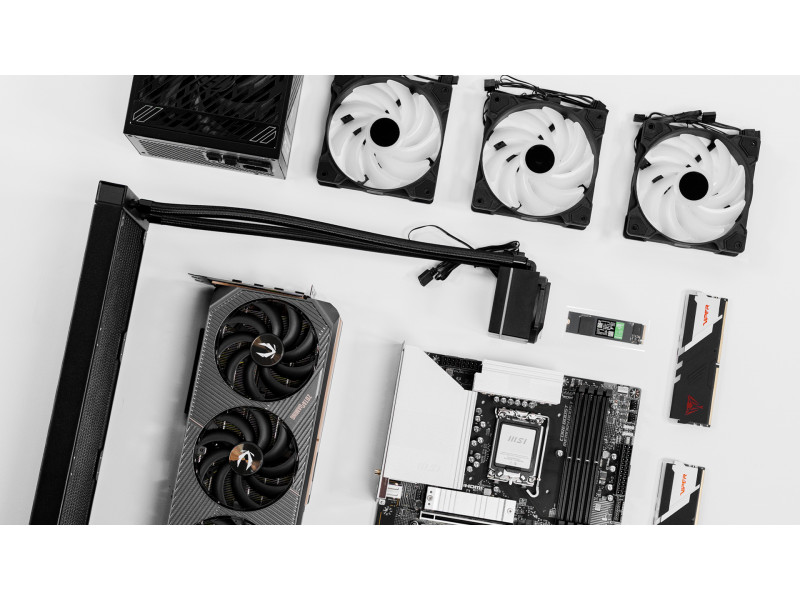
- Have massive airflow potential
- Use dedicated cooling solutions
- Avoid thermal compromise entirely
- Maintain peak clocks for hours
That’s why serious gamers eventually move away from laptops, especially when performance consistency is critical.
Is Thermal Throttling a “Flaw” in MacBooks?
Not exactly. Thermal throttling in MacBooks is not a defect, it’s an intentional part of the system’s design. Specifically, it is:
- A deliberate design decision, built into macOS and hardware to protect the CPU, GPU, and internal components from overheating
- A trade-off between silence, size, and power, prioritizing a thin, quiet laptop over sustained peak performance
- Expected behavior in thin laptops, where thermal headroom is limited compared to bulkier gaming laptops or desktops
For casual gaming or everyday tasks, MacBook Pros are more than capable. However, during long, demanding gaming sessions or heavy workloads, thermal throttling in a MacBook Pro becomes unavoidable, as the system dynamically reduces clock speeds to stay within safe thermal and power limits.
Understanding this helps set realistic expectations: MacBooks excel at burst performance and efficiency, but they aren’t designed to compete with fully cooled desktop systems for sustained gaming workloads.
Final Thoughts on Thermal Throttling in MacBook Pros
Thermal throttling in a MacBook Pro isn’t a rumor, a defect, or user error, it’s a predictable result of thin-and-light design meeting sustained gaming workloads.
MacBook Pros are powerful, efficient, and beautifully engineered machines. But when it comes to long gaming sessions, they will prioritize safety, silence, and longevity over raw, sustained performance.
If gaming is your main focus, a purpose-built desktop or gaming laptop will always deliver a better experience. If portability and versatility matter more, understanding and working around thermal limits is simply part of the MacBook Pro ownership experience.
At Xidax, we believe informed gamers make better decisions and knowing the truth about thermal throttling is the first step toward choosing the right system for how you play.
FAQs About Thermal Throttling in MacBook Pros
Does every MacBook Pro experience thermal throttling?
Yes, to some extent. The degree varies by model, workload, environment, and cooling conditions.
Is thermal throttling dangerous for my MacBook Pro?
No. Throttling protects your hardware and prevents long-term damage.
Why does my MacBook Pro throttle at “low” temperatures?
Throttling isn’t triggered by temperature alone. Power limits, sensors, and workload type also matter.
Can software updates fix thermal throttling?
Updates can improve efficiency, but they can’t override physical cooling limitations.
Does Apple Silicon eliminate throttling?
No. It reduces heat and improves efficiency, but sustained workloads can still trigger throttling.
Should I use fan control software?
It can help in some cases, but it won’t completely prevent throttling and may increase wear or noise.